The best ai-powered meeting assistant is the one that works on your video platform, captures audio the way your meetings require, and fits your budget. Fireflies and Otter suit teams that want shared, searchable notes. Fathom suits solo users who want a free tool. Granola and Krisp suit people who do not want a bot in the call, and Fellow suits teams with strict security demands. If you need help while you are still talking, such as in an interview or a sales call, Zustly is built for that.
You can't listen closely and write good notes at the same time. Every tool below promises to fix that, and most of them transcribe accurately enough. What separates them is how they capture audio, which apps they connect to, how much the free plan really gives you, and what they do with your data.
This list covers eight tools, each described the same way: how it works, who it suits, and what it costs. Zustly is our own product, so it comes first. It is a live copilot, not a minutes generator, and we say plainly where it fits and where another tool is the better choice.
What an AI meeting assistant does and how to choose one
An AI meeting assistant listens to a meeting, turns the audio into a transcript, and uses AI to produce summaries, action items and answers. Pick by capture method, platform support and free-plan limits before you look at any feature list.
What an AI meeting assistant is
An AI meeting assistant is software that transcribes your meeting and then uses AI to write notes, minutes, action items or suggested replies. Most tools record the call and hand you the results afterward. Others work live, showing a running transcript or suggestions while the conversation is still happening.
The eight tools in this article fall into three groups:
- Recorders (Fireflies, Otter, Fathom, tl;dv, Fellow) transcribe and summarize, usually with a notetaker bot that joins the call.
- Botless capture tools (Granola, Krisp) take audio from your own device, so no bot appears in the participant list.
- Live copilots (Zustly) respond in real time while you speak.
Can ChatGPT do meeting minutes? Partly. It can turn a transcript you paste in into tidy minutes, but it does not join or record the call. You still need a tool that produces the transcript, which is the job these assistants do.
An assistant is only useful at the moment it works: after the call for records, during the call for help.
Do you need one if Zoom, Teams or Meet has AI built in?
Not always. Zoom includes AI features such as transcription and summaries on its paid plans. Microsoft Teams gets AI meeting notes through a Copilot license on top of a Microsoft 365 business subscription. Google Meet ties transcription to certain Workspace plans. If every meeting runs on one of these platforms, check the built-in option first, because a second subscription adds cost.
A separate assistant makes sense in a few situations:
- Your meetings span several platforms and you want one place for all the notes.
- You need search across many meetings, conversation analytics or CRM syncing.
- You want a capable free plan rather than a paid platform upgrade.
- You do not want a visible bot on the call.
- You need live help during the conversation, not a recap afterward.
How to choose
Start with the platform, because platform fit removes half the options. Then work through the rest of the checklist:
- Capture method: does a bot join, or does the tool listen on your device?
- Free plan limits: minutes per month, storage and history length differ a lot.
- Integrations: CRM, Slack and task tools matter if notes must travel.
- Price per seat: multiply by your headcount, and check whether the quoted price assumes annual billing.
- Accuracy on your vocabulary: top tools transcribe everyday English similarly, but technical terms and accents trip some of them.
Run one real meeting through your top two picks before you commit. A tool that mangles your product names will cost you more editing time than it saves.
1. Zustly: live help during calls and interviews
How it works
Zustly is a desktop app for macOS 13+ and Windows 10+ that works as a real-time AI assistant for live calls. It listens to the conversation, reads your screen, and shows suggested answers in a private overlay. Talking points start streaming in about 0.8 seconds, often before the other person finishes the question.
You upload your resume and the job description once, so answers draw on your real projects and the role's keywords. Answer modes cover behavioral, technical and quick-fire rounds, and the STAR prompts (Situation, Task, Action, Result) aim for under 90 seconds. The live transcript is dual-channel, which keeps your words and the other party's separate.
Zustly never joins the call as a bot, so it does not appear in the participant list, and nothing needs installing on the other side. The overlay is a protected window hidden from screen shares, recordings and screenshots taken by meeting apps. In a coding round, the interviewer sees only your editor. The ⌘\ shortcut hides the overlay instantly.
Zustly helps you answer during the call, not document it afterward.
Who it suits
Zustly suits you when the pressure sits in the conversation itself. That means final-round interviews, system design and coding rounds, salary negotiation, and also sales calls and 1:1 meetings. It reads coding prompts, slides and diagrams, so it helps with more than spoken questions. One caution: some employers prohibit AI help during interviews, so read the rules of your process and follow them.
- Choose it if: you freeze under pressure, want answers grounded in your own resume, or need a tool that leaves no trace on a shared screen.
- Skip it if: you need shared minutes, recordings or a searchable archive for a whole team. Fireflies, Otter or Fellow fit that job better.
Pricing and platforms
Zustly works alongside Zoom, Google Meet, Microsoft Teams, Webex, Slack Huddles, Discord, CoderPad and HackerRank. You pay by the hour of use, and you can start free with no credit card.
- Starter, $0: 10 minutes per day, with resume and job description context, screen and code reading, STAR and technical modes, and the undetectable overlay.
- Teams, $12.99 per hour: everything in Starter, plus teammate invites and a shared workspace.
- Business, $14.99 per hour: everything in Teams, plus the most capable answer model, mock interview replays and priority support.
- Extra credits can be bought on every plan.
As a worked example, a 45-minute round is 0.75 hours. At those hourly rates that comes to about $9.74 on Teams or about $11.24 on Business. The free Starter minutes are enough to test it on a practice call first.
2. Fireflies: shared notes, topics and CRM sync
How it works
Fireflies sends a notetaker bot into your Zoom, Google Meet, Microsoft Teams, Webex and other calls. It transcribes everything, labels speakers once you tell it who is who, and then pulls out dates, metrics, tasks and questions so you can filter them later.
It also runs sentiment analysis, shows each speaker's talk time, and tracks topics you define yourself. You can clip soundbites to share, and the AskFred feature answers questions about a meeting. Native integrations push data into HubSpot, Salesforce, Slack and Dropbox.
Fireflies earns its place when dozens of meetings a week need to be sorted, searched and pushed into other tools.
Who it suits
Fireflies suits sales, operations and project teams that run many meetings and need them organized by topic, project or team. The weekly feed gives managers a quick breakdown of what happened. The most common complaint is that some screens feel cluttered.
- Choose it if: your notes must flow into a CRM or Slack, or you want to track topics across many calls.
- Skip it if: you want a bot-free setup or a very simple interface.
Pricing and platforms
The free plan includes unlimited transcription but only 400 minutes of meeting storage, so older meetings can age out of reach. Paid plans start at $10 per user per month billed annually.
- Platforms: Zoom, Google Meet, Teams, Webex, GoTo Meeting, Skype, Dialpad Meetings, Lifesize, Jitsi.
- Free plan: yes, with the storage limit above.
- Paid from: $10 per user per month, billed annually.
3. Otter: ask questions about your meetings
How it works
Otter joins your Zoom, Google Meet or Teams call with its notetaker and shows a live transcript while the meeting runs. Afterward it produces a summary and action items. Its standout feature is AI Chat, where you ask questions such as "was I mentioned in this meeting?" and get a breakdown of the action items assigned to you.
You can use the chat inside one meeting, inside a team channel, or across your whole account to ask about recent meetings and topics. Otter also transcribes uploaded audio and video files, and it integrates with Slack so snippets reach your channels. Workspaces keep separate teams' meetings apart.
Otter works best as a meeting memory you can question in plain English.
Who it suits
Otter suits teams that want a shared, searchable meeting knowledge base and people who prefer a chat interface to scrolling through transcripts. It is also handy if you must step out of calls and need to catch up on what concerns you. Its weak spot is technical language, where transcription quality drops.
- Choose it if: you want to ask questions across many meetings, or you handle uploaded recordings too.
- Skip it if: your meetings are full of jargon and you cannot afford to proofread transcripts.
Pricing and platforms
Otter has a free plan with up to 300 minutes per month, which suits light use. Paid plans start at $8.33 per user per month billed annually, one of the lower entry prices on this list.
- Platforms: Zoom, Google Meet, Teams.
- Free plan: up to 300 minutes per month.
- Paid from: $8.33 per user per month, billed annually.
4. Fathom: a free option for individuals
How it works
Fathom records and transcribes your meetings, then generates a summary you can send to your CRM or a Slack channel. You can cut short clips from a call, add them to playlists and share them, which is a quick way to circulate one decision without sending an hour of video.
Copy and paste keeps its formatting, so a summary lands in your doc or email already tidy. The paid Team plan adds a Team Calls tab, per-member meeting statistics, keyword alerts and more automation into your CRM and other apps.
Fathom covers the core features at no cost, which makes it the easiest tool on this list to test.
Who it suits
Fathom suits freelancers, solo consultants and small teams who want transcripts and summaries without a subscription. It is a sensible way to find out whether an assistant improves your week at all. The main caveat is that it has some quirks on Google Meet and Teams.
- Choose it if: you want strong basics for free and light sharing of clips.
- Skip it if: most of your calls run on Meet or Teams and you need flawless behavior there.
Pricing and platforms
The free plan is built for individuals and does not cap you the way minute-limited plans do. Team plans start at $15 per user per month billed annually, and that is where coaching statistics and keyword alerts live.
- Platforms: Zoom, Google Meet, Teams.
- Free plan: yes, for individuals.
- Paid from: $15 per user per month, billed annually.
5. Granola: your notes, enhanced by AI
How it works
Granola captures audio from your device instead of joining the call, so it works with any video tool and no bot appears. You type rough notes while you listen, and Granola then enriches them with details pulled from the transcript. The result reads like notes you wrote, only more complete.
It formats notes based on context, and you can use custom templates for meeting types such as standups or sales calls. The interface is minimal. Native integrations include HubSpot, Slack and Notion. On iOS it can transcribe phone calls, but only calls you place yourself.
Granola keeps you in the driver's seat: you write the skeleton, and the AI fills in what you missed.
Who it suits
Granola suits consultants, managers and founders who like taking notes but hate missing details, and anyone who does not want a bot announcing itself to clients. It does not record video, so you cannot replay the call visually.
- Choose it if: you want invisible capture and notes that sound like you.
- Skip it if: you need video playback or a fully automatic recap with no input from you.
Pricing and platforms
The free plan limits history: you cannot read notes older than 30 days. Paid plans start at $14 per month and include unlimited meeting transcripts.
- Platforms: any, because it records device audio.
- Free plan: yes, with 30 days of note history.
- Paid from: $14 per month.
6. tl;dv: search across every meeting
How it works
tl;dv records Zoom, Google Meet and Teams calls and puts its effort into finding things afterward. The Ask tl;dv input lets you prompt across many meetings at once, for example for an action item summary or a team misalignment check. The Search tab finds exact phrases, such as what your product manager said two months ago.
Filters narrow results, including HubSpot and Salesforce deal stages once connected. Scheduled AI reports tie it together: choose meetings, a prompt and a frequency, and tl;dv sends a daily action item list or a weekly list of open bugs to Slack or your CRM.
tl;dv is built for the question "what did we decide about this, and when?"
Who it suits
tl;dv suits product, sales and customer teams with a long history of calls to mine. It is lightweight on your computer's resources. One reported weakness is that the bot can fail to join when tl;dv's servers are busy, so keep a backup way to capture important calls.
- Choose it if: you analyze trends across many meetings or want scheduled reports.
- Skip it if: you need a flawless guarantee that the bot joins every time.
Pricing and platforms
The free plan includes unlimited transcription, which is generous. Paid plans start at $18 per user per month billed annually, the highest entry price among the recorders here.
- Platforms: Zoom, Google Meet, Teams.
- Free plan: yes, with unlimited transcription.
- Paid from: $18 per user per month, billed annually.
7. Krisp: cleaner audio with no bot
How it works
Krisp is a desktop app that cleans up your audio and also provides meeting transcription and summaries. You install it, then select it as the microphone and speaker in Zoom or Meet. Because it sits on your computer, no bot joins the call.
It filters music, ringtones and background chatter without making your voice sound artificial. It uses only a modest share of processor power and memory, so video calls keep running smoothly. The setup takes a few extra minutes compared with a bot you simply invite.
Krisp fixes what the transcript depends on: the quality of the sound going in.
Who it suits
Krisp suits remote workers in noisy homes, shared offices or cafes, and anyone with a weak laptop microphone. Better input also means a cleaner transcript. The main downside is that it can distort your voice depending on your hardware.
- Choose it if: background noise or poor audio is your real problem and you want no visible bot.
- Skip it if: you want the deepest analysis or integrations, since note-taking is a secondary feature here.
Pricing and platforms
Paid plans start at $8 per user per month billed annually, the lowest per-seat entry among the recorders after Fellow. Check the current plan page to see what any free tier includes.
- Platforms: any app with audio input.
- Free plan: check current plans.
- Paid from: $8 per user per month, billed annually.
8. Fellow: agendas, notes and security
How it works
Fellow covers the whole meeting cycle: briefs and agendas before the call, notes and action items during it, and analytics plus a copilot afterward. You can build meeting templates, and the product ships with a strong library of its own. A feed and calendar show how your day will unfold.
Fellow also stands out for transparency on security. It publishes a trust center managed through the Vanta platform, listing security controls and vendors, and its AI vendors are prohibited from training models on your data. It offers more than 50 native integrations.
Fellow treats the meeting as a process, not just a recording.
Who it suits
Fellow suits managers and teams in security-conscious fields such as finance, legal and healthcare, plus anyone who wants agendas and notes in one tool. Confirm your specific compliance needs with your own security team before you rely on it. Users report that the desktop app can be a bit buggy.
- Choose it if: you want agendas, action items and strong data-handling documentation together.
- Skip it if: you just want a quick, free transcript, or you need a flawless desktop app.
Pricing and platforms
Fellow's free plan covers 5 AI recordings per user, enough for a trial but not for daily use. Paid plans start at $7 per user per month billed annually, the lowest entry price here.
- Platforms: Zoom, Google Meet, Teams.
- Free plan: 5 AI recordings per user.
- Paid from: $7 per user per month, billed annually.
How the eight tools compare
The table below puts the eight tools side by side. A quick calculation for a five-person team shows how seat prices add up. Always confirm current prices on the vendor's page, because plans change.
Features and prices in one table
| Tool | Best for | Bot on the call | Platforms | Free plan | Paid from |
|---|---|---|---|---|---|
| Zustly | Live answers in interviews and calls | No | Zoom, Meet, Teams, Webex, Slack Huddles, Discord | 10 min/day | $12.99/hour |
| Fireflies | Topics and CRM sync | Yes | Zoom, Meet, Teams, Webex and more | Yes, 400 min storage | $10/user/month |
| Otter | Asking questions about meetings | Yes | Zoom, Meet, Teams | 300 min/month | $8.33/user/month |
| Fathom | Free individual use | Varies | Zoom, Meet, Teams | Yes | $15/user/month |
| Granola | Your notes plus AI | No | Any | Yes, 30-day history | $14/month |
| tl;dv | Searching many meetings | Bot or botless options | Zoom, Meet, Teams | Yes | $18/user/month |
| Krisp | Clean audio | No | Any | Check current plans | $8/user/month |
| Fellow | Agendas and security | Bot or botless options | Zoom, Meet, Teams | 5 AI recordings/user | $7/user/month |
Paid prices for the recorders assume annual billing.
What a five-person team pays
For recorders priced per seat, multiply by five. On annual billing the monthly totals are:
- Fellow: $35
- Krisp: $40
- Otter: $41.65
- Fireflies: $50
- Granola: $70, assuming the $14 price is per seat
- Fathom: $75
- tl;dv: $90
Zustly is priced by hours of use, so compare it by how many live hours you actually need. A seat price that looks cheap can still lose if the free plan's limits force you to upgrade in week two.
How to narrow eight down to two
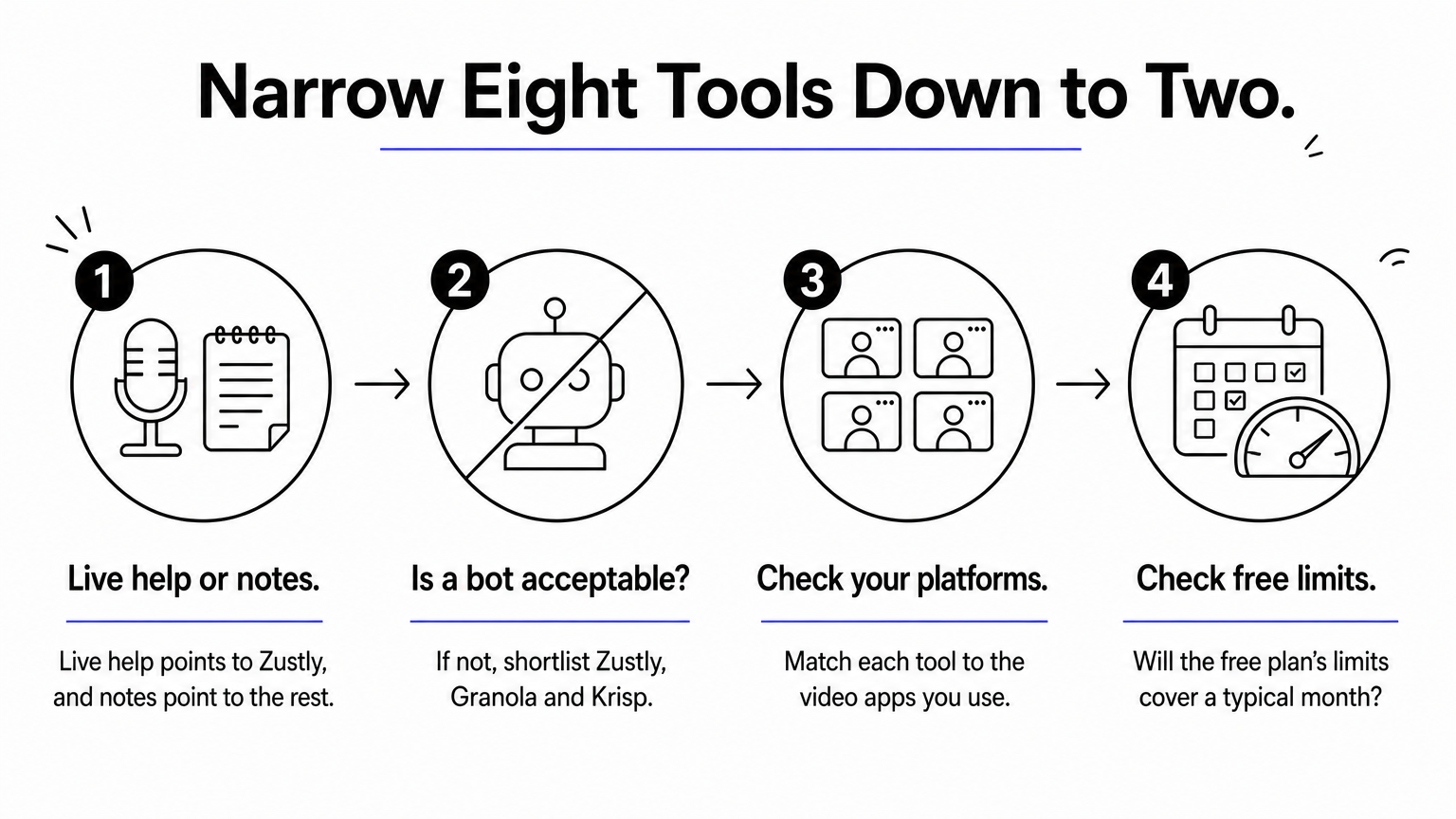
Answer four questions in order. First, do you need help during the call or notes after it? Live help points to Zustly, and notes point to the rest. Second, is a visible bot acceptable? If not, shortlist Zustly, Granola and Krisp. Third, which platforms do you use? Fourth, will the free plan's limits cover a typical month?
Privacy and consent checks before you record
Tell everyone before an AI tool records or transcribes, and check how the vendor handles your data. Consent and data handling matter more than any feature.
Know the consent rules
Recording laws vary by state. Many states allow recording with one party's consent, while others, California among them, require everyone's. Telling participants up front keeps you safe either way, and it keeps trust intact. A visible bot makes disclosure automatic, while a botless tool leaves the announcement to you. This is general guidance, not legal advice.
A botless tool changes who sees the recorder, not whether people should be told.
Questions to ask any vendor
Before you roll a tool out, ask these:
- Does the vendor use your meeting content to train its AI models?
- Where is audio stored, and how long is it kept?
- Can you delete recordings and transcripts yourself?
- Which compliance certifications does it hold, and can you see the documentation?
- Is the tool opt-in for each meeting, or does it join everything by default?
Picking your assistant
Choose by how you work. Recorders such as Fireflies, Otter, Fathom, tl;dv and Fellow are best for shared notes, search and follow-ups. Granola and Krisp suit you if no bot should appear. Check your platform's built-in AI before paying for another subscription, and tell participants whenever you record.
If your meetings are the high-stakes kind, where you must think and speak in real time, a live copilot is a different tool from a note taker. You can try Zustly free on your next call with 10 minutes a day and no credit card, and see how the overlay works before you decide.